How To Transfer Files From iOS To Android And Vice Versa
SachinSangwan - Aug 26, 2019
Transferring data from iPhone to Android phones and vice-versa is not easy, and how to do this if you don't have data backup on your PC?
- How to unlock a disabled iPhone: a step-by-step guide
- These Are Must-Have Apps For Rooted Android Phones
- This Viral TikTok Video Teaches iPhone Users A Hidden Trick That Many Didn't Know
It seems very difficult to transfer data from iPhones to Android phones and vice-versa, especially when we are transferring massive data. It would be easier for you if you already have an iPhone backup in your PC or in any other external storage devices. In such a case, you can directly transfer data into an Android phone smoothly and quickly via USB.
But what if the data is not on your computer? In this situation, you won't be able to exchange data between two different operating systems. Don't worry; you can still transfer data from your iPhone to an Android handset very easily and conveniently with the Mobile Transfer software, which is specially designed to exchange information and data such as songs, movies, pictures, even accounts, and contacts very quickly.
Transfer data from iPhone to Android
Step 1: Download and run Mobile Transfer
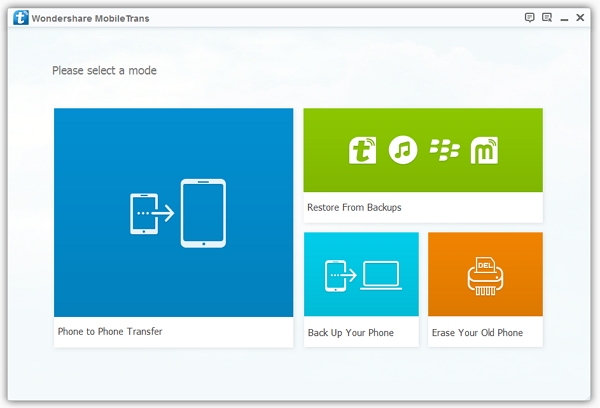
- Firstly, you need to download the Mobile Transfer program and install it on your computer.
- Launch the program, and you'll see an interface where you will find four types of tools, out of these four, you have to go with 'Phone to Phone Transfer' and click on the 'Start' button.
Note: This software needs iTunes for transferring data from iPhone to Android. So make sure you've installed the iTunes program on your PC.
Step 2: Connect the iPhone and Android devices to the laptop/computer
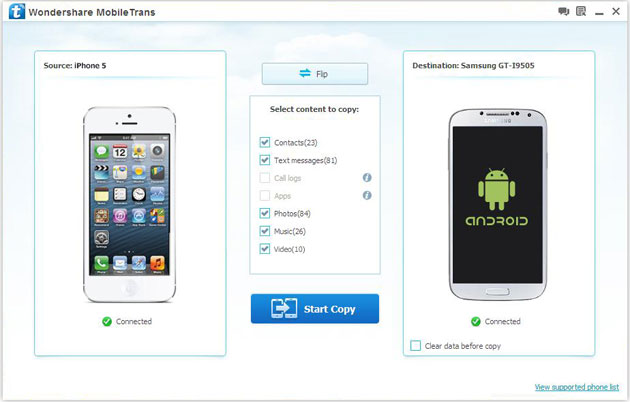
Now, you need to connect both the phones, Android and iPhone with your PC using different data cables. When both the phones are connected, the PC's screen will show them in Source and Destination.
On the same screen, you will also see a Flip button, to be used in case you want to transfer data from Android phone to iPhone. On the other hand, the software also provides you with a 'Clear data before copy' option. As the name suggests, by clicking on it, you can quickly empty the destination device for saving data.
Step 3: Transfer data from iPhone to Android
In the middle, you'll have many options like videos, music, photos, contacts, text, and messages. You need to select which type(s) of data you want to transfer. Finally, after doing all the steps, click on the Start Copy button and the copying process will start. Make sure both the phones stay connected during the process.
Step 4: Transfer Android phone data to iPhone

If you want to transfer data from Android to iPhone, you need to follow these steps:
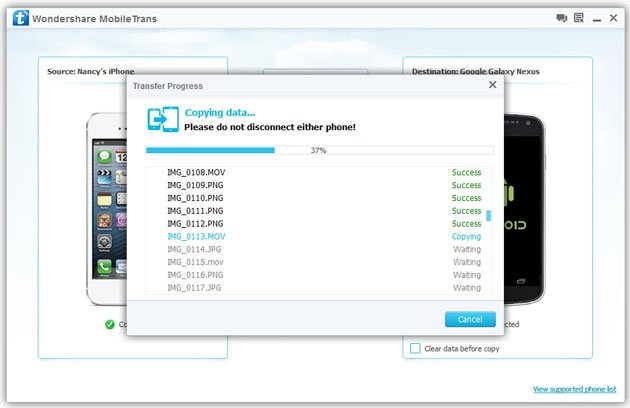
- Like the iPhone process, in the middle, there will be categories of data you can share. Select one or multiple options and then click on Start Copy, the moving process will get started.
- After the process has finished, click on the "OK" button.
Note: Don't interrupt the transferring process.
Featured Stories

How To - Jul 25, 2025
Savant - Ascent REMIX Free Download (v1.2) - Electrifying Twin-Stick Shooter...

How To - Jul 25, 2025
Way of the Hunter Free Download (v1.23a) - The Ultimate Realistic Hunting...

How To - Jun 12, 2025
The Legend of Tianding Free Download (v1.01) - Become Taiwan's Legendary Outlaw

Features - Jun 11, 2025
Best VPN for PUBG Mobile 2025: Lower Ping & Regional Access Guide

How To - Jun 08, 2025
Telepath Tactics Liberated Free Download (v1.0.57) – The Ultimate Tactical RPG...

How To - Jun 07, 2025
The Mystery of Woolley Mountain Free Download – Whimsical Adventure Game

How To - Jun 07, 2025
We Need to Go Deeper – Complete Edition Free Download (v1.6.5)

How To - Jun 06, 2025
Pharaoh: A New Era Free Download – Build an Ancient Egyptian Empire

How To - Jun 04, 2025
Stardew Valley Free Download (v1.5.6) - Build Your Dream Farm

How To - Jun 04, 2025
Comments
Sort by Newest | Popular