How Customize A Personalized Sticker For WhatsApp. Here Are Steps
Author
Just a favorite PNG image in the phone. You can customize a personalized sticker in WhatsApp Messenger. The following simple steps can help you.
- Photos In WhatsApp Chats Will Self-Destruct If This Feature Comes To Life
- How To Export Your Old Messages From Social Media
- WhatsApp Defends Its Updated Privacy Policies, What Does It Have To Say?
WhatsApp Messenger, a cross-platform messaging owned by Facebook, recently allowed its users to add a new and personal Sticker to the app inside. This feature benefits user's entertainment purpose when sending the special and unique emotional icons to friends. The feature is integrated into the WhatsApp Messenger app running in Android and iOS platform. Although Andriod users can select the given stickers, they also download the packs from the third party on Google Play. Besides, Andriod users have another way that is creating their own personalized stickers and integrating it into the WhatsApp Messenger.
Here are the simple steps that can help you. You should follow step by step.
Remember to share this article for others in your Friend list.
Step 1:
Step 2:
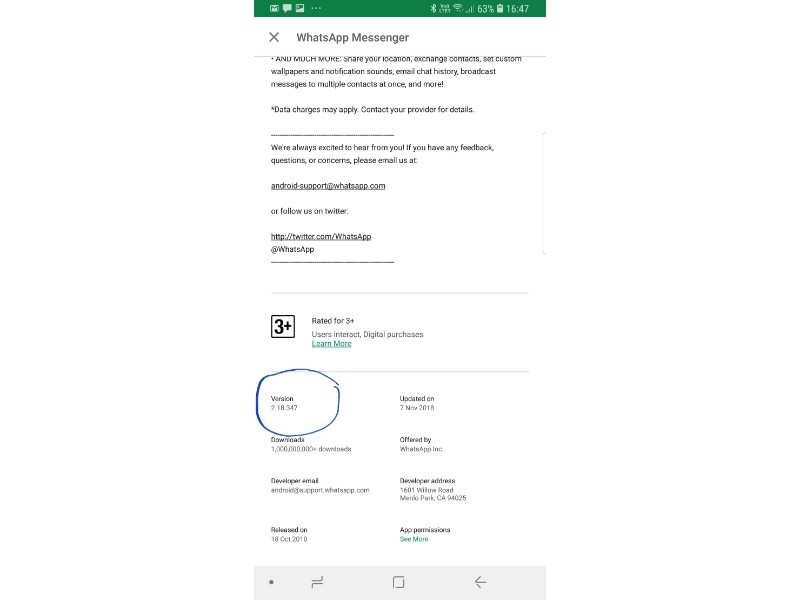
Upgrade to the higher mobile version of WhatsApp, at least 2.18.
Step 3:
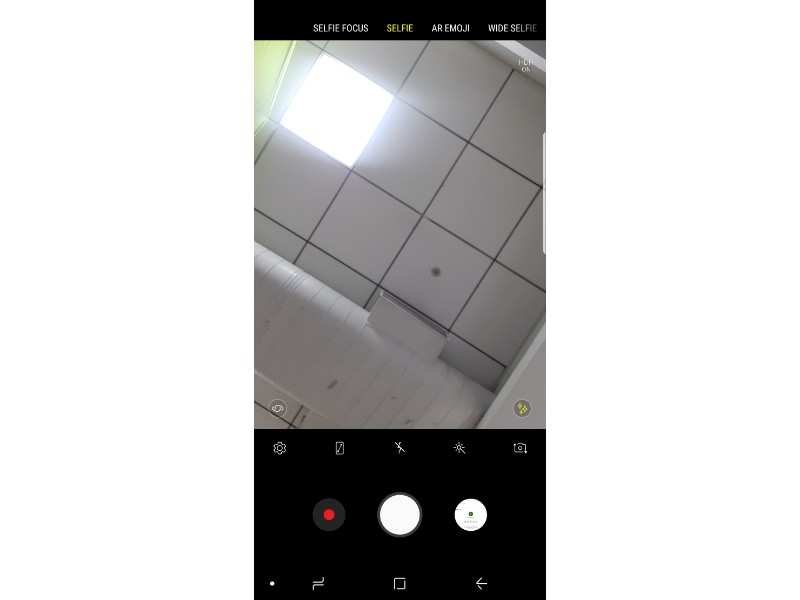
Select the emotional status
Step 4:
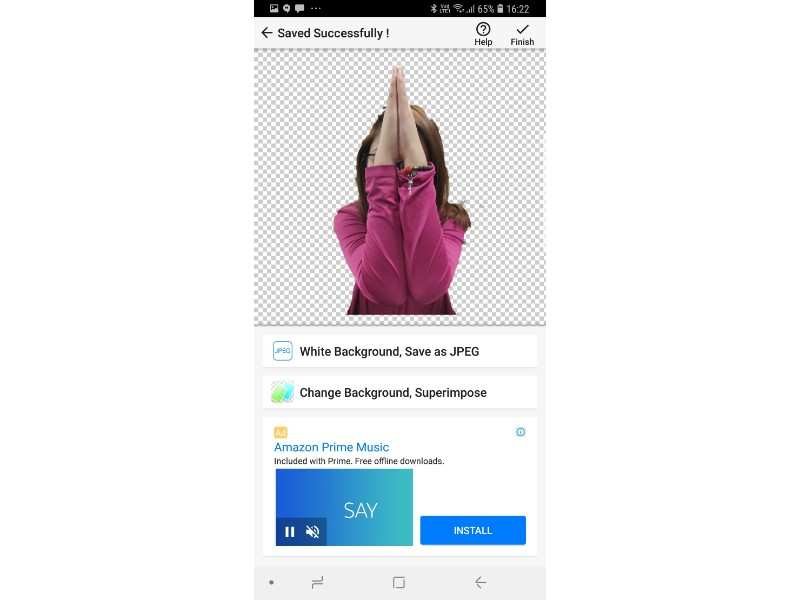
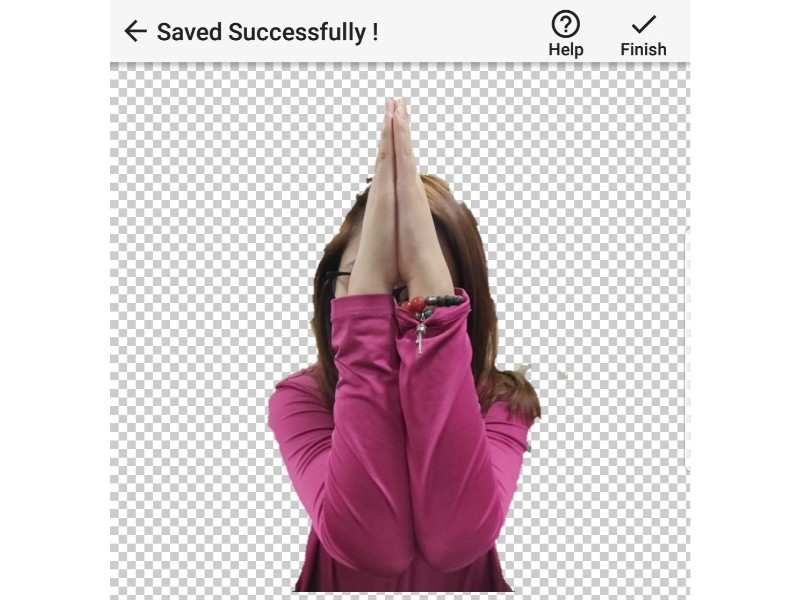
Convert them into transparent background images (PNG extension)
Step 5:
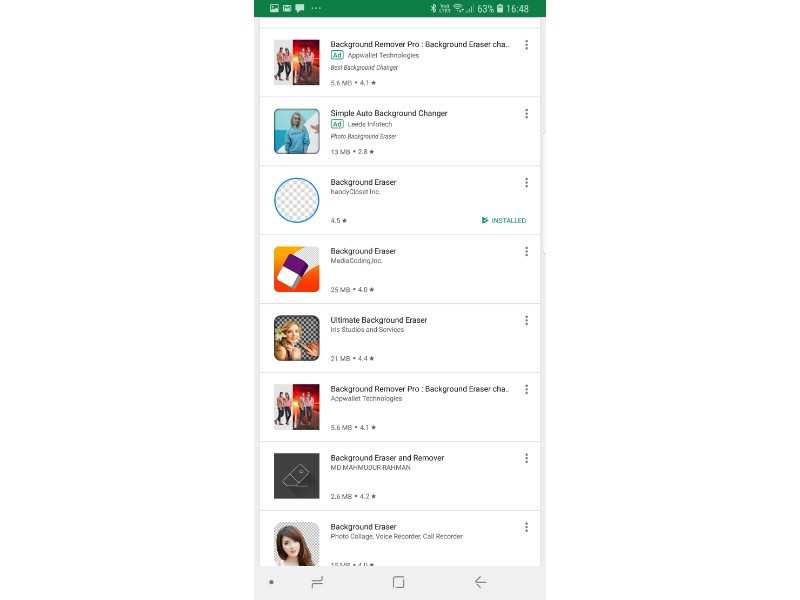
Download a popular background eraser app on Google Play
Step 6:
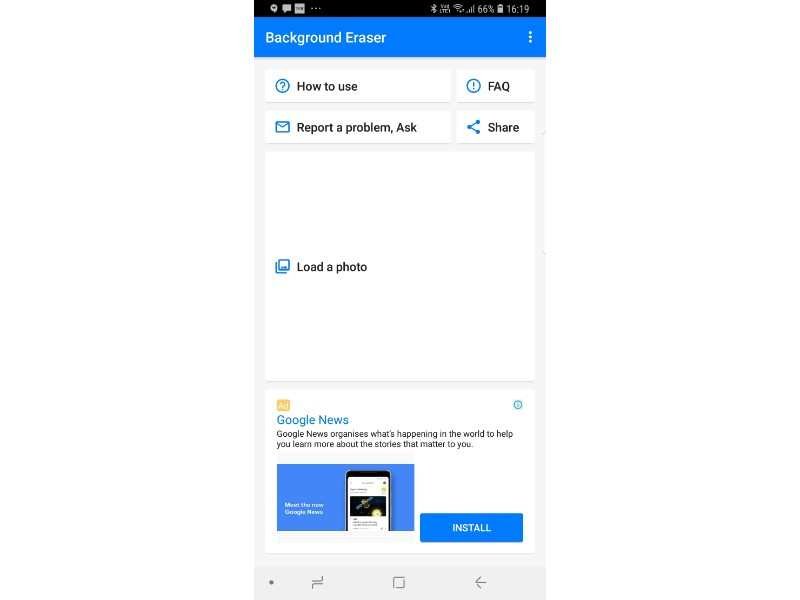
Select your desired images to convert into Stickers
Step 7:
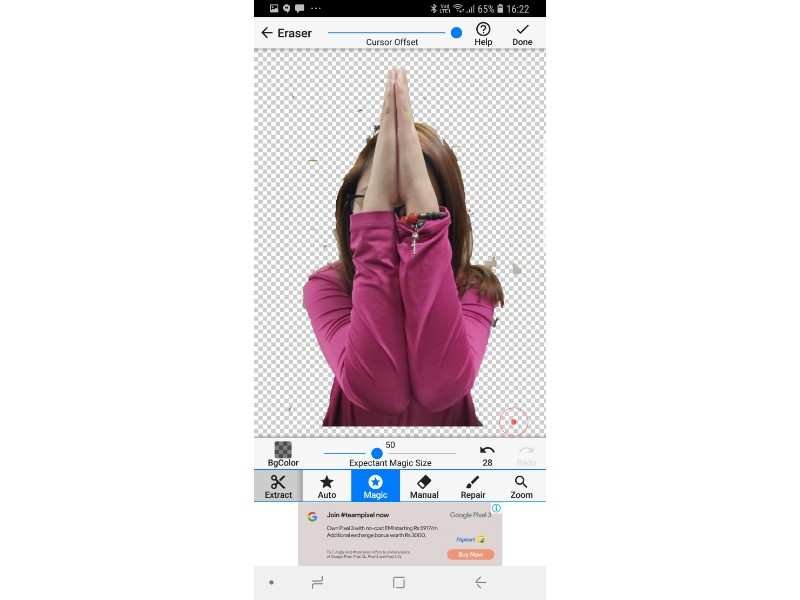
Use Auto, Magic or Manual tool for background erasing purpose
Step 8:
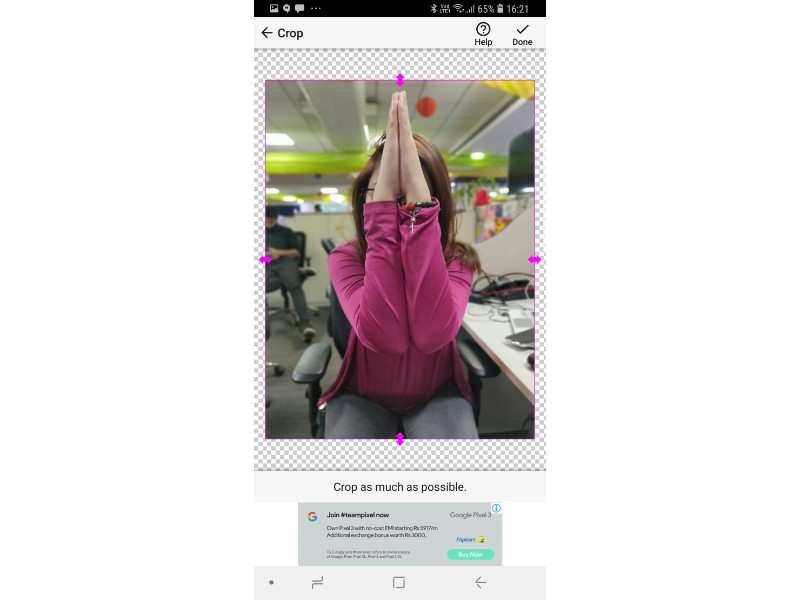
Crop it
Step 9:
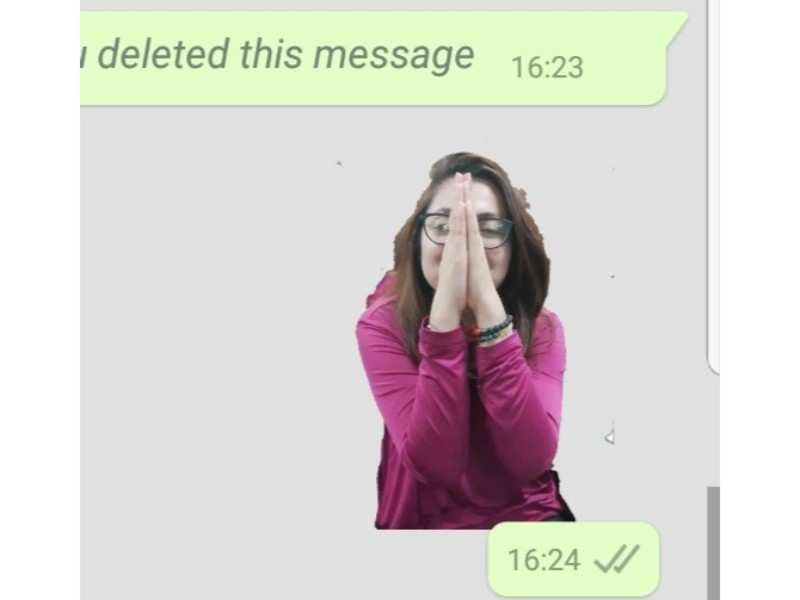
After that, you have the "personalized stickers"
Step 10:

You need to create at least 3 "personalized stickers" as WhatsApp requirement.
Step 11:

Download the app named "Personal Stickers for WhatsApp" on Google Play
Step 12:
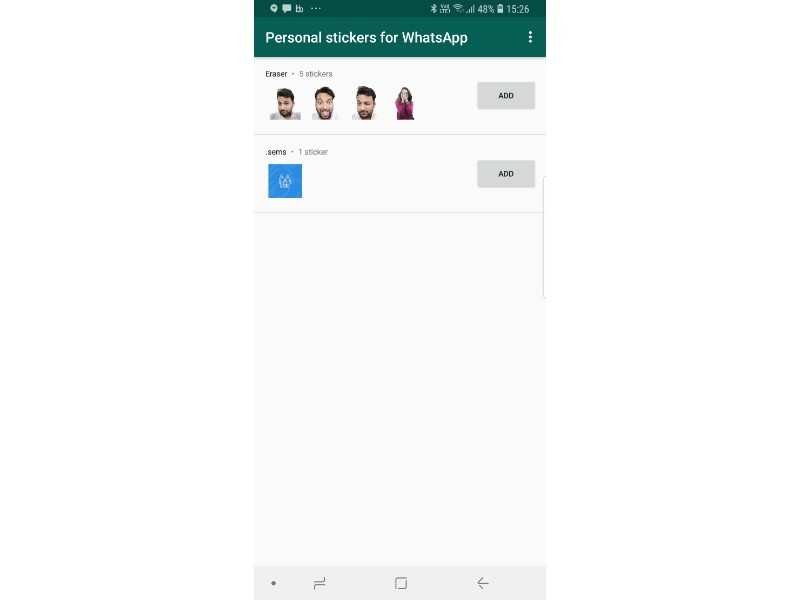
The "Personal stickers for WhatsApp" app will realize your "personalized stickers" automatically
Step 13:
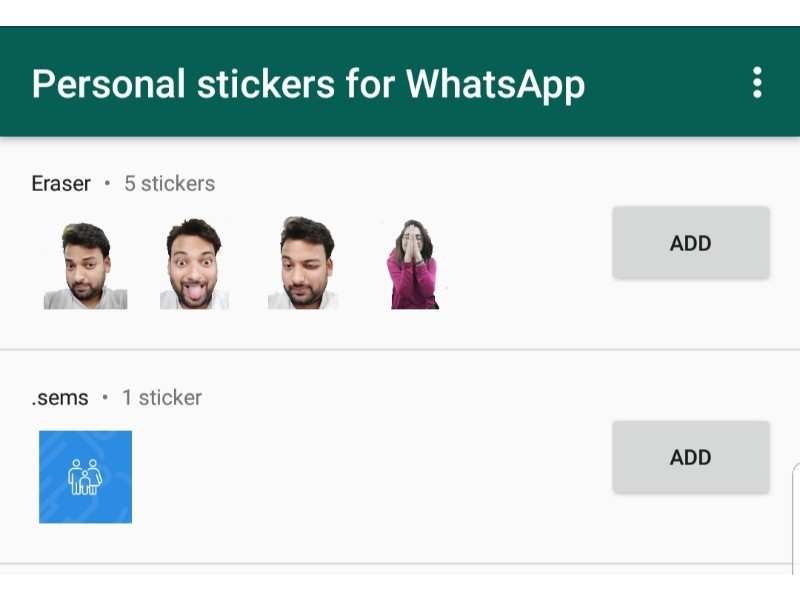
Select "Add" at the right side of the "personalized stickers"
Step 14:
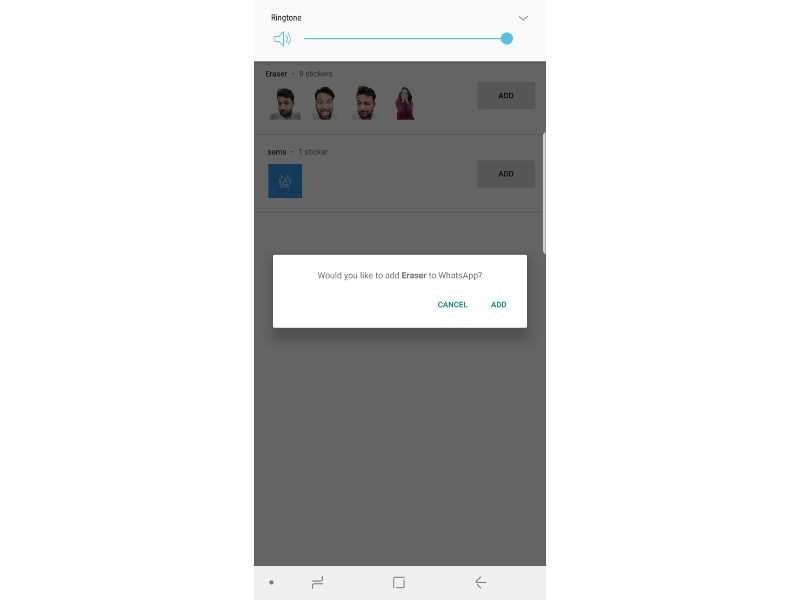
Tap on "Add" 1 more time
Step 15:
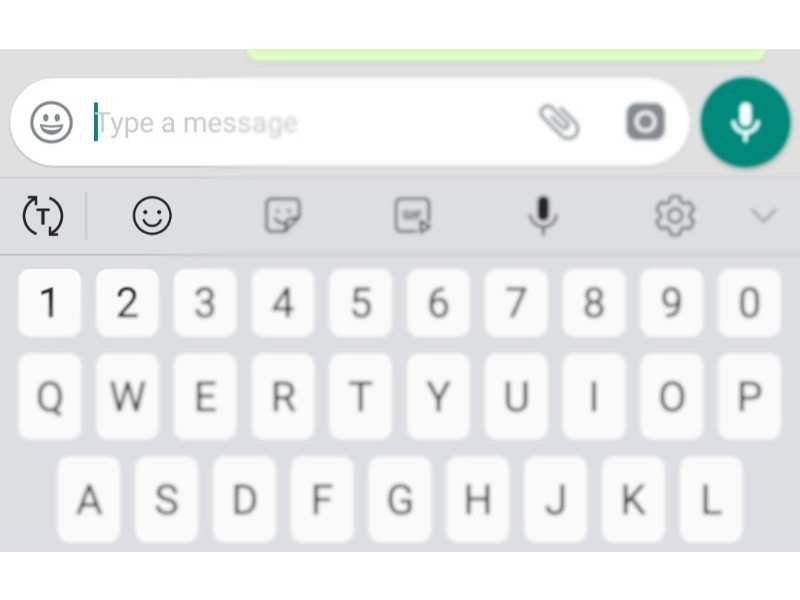
Open the WhatsApp's chat window, tap on the smiley icon
Step 16:
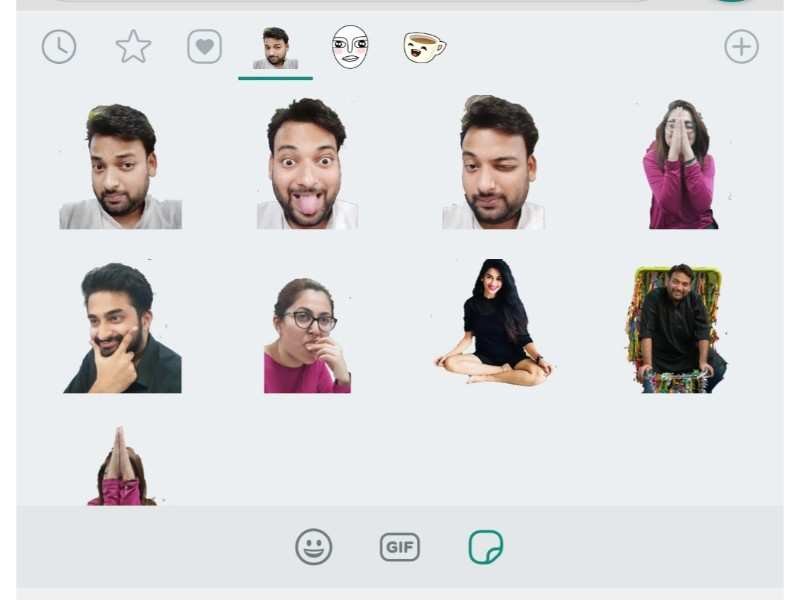
Select your sticker icon, which is located near the GIF icon, at the bottom of your screen
Step 17:
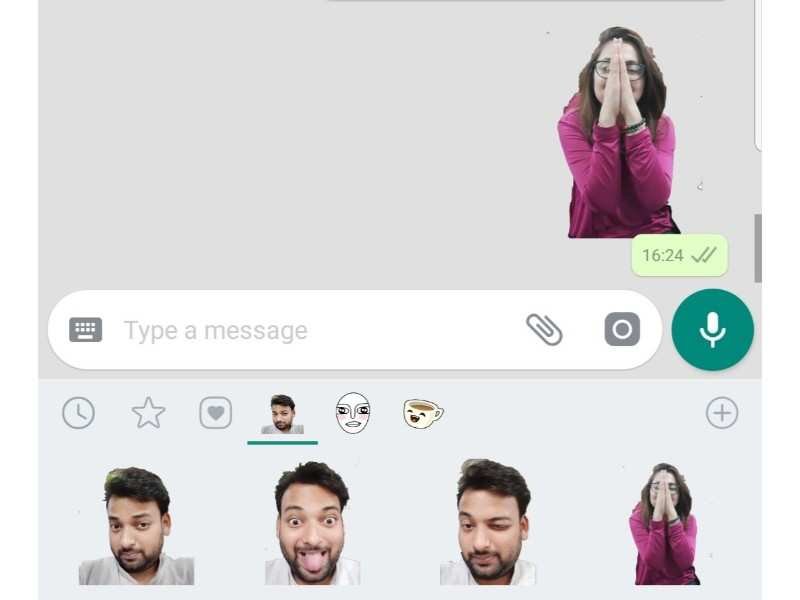
Step 18:
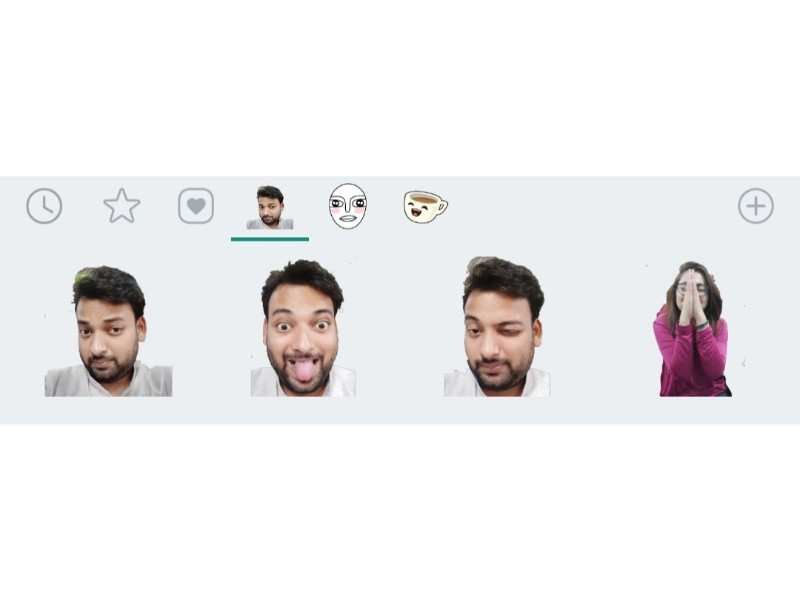
Now you can try by sending a funny message to your friends with these emotional and personalized icons.
Featured Stories
Gadgets - Sep 30, 2026
ATK Dragonfly A9 Ultimate+ Gets a Magnetic Charging Dock
Gadgets - Jul 05, 2026
OneOdio Studio Max 2 Review: Built Like A DJ Headphone, Best Used At A Desk
Gadgets - Jul 01, 2026
Top 5 Most Expensive Headphones in 2026
Gadgets - Mar 08, 2026
Best Budget Keyboards of 2026
Gadgets - Feb 27, 2026
Top Budget-Friendly WiFi Routers for 2026
Gadgets - Feb 25, 2026
Top 4 Budget Rechargeable Wireless Mice
Gadgets - Feb 24, 2026
3 Budget Monitors That Reduce Eye Strain and Improve Productivity
Gadgets - Jul 21, 2025
COLORFUL Launches iGame Shadow II DDR5 Memory for AMD Ryzen 9000 Series
Gadgets - Jun 23, 2025
COLORFUL SMART 900 AI Mini PC: Compact Power for Content Creation
Review - Jun 18, 2025