How To Remove Malware From Your Android Device
Aadhya Khatri - Jun 06, 2019
When your phone is infected with malware, take the following steps to remove it and protect your device from future harm
- POCO X2 vs POCO F2 Pro: Reasons Why POCO X2 Is A Better Choice
- Samsung Galaxy M12 Debuts In India With 90Hz Display & 48MP Quad Cam
- These Are Must-Have Apps For Rooted Android Phones
Google has made its ecosystem a safer place for users with several enhancements to Play Protect. However, as nothing is perfect, viruses can find a way to bypass the company defends and infect your devices.
If you notice these following symptoms, the chance of your devices being under attack is high. The signs include the phone runs more slowly, the battery drains more quickly, and ads show up more often.
Apps that may carry malware usually promise you free services, porn, money, games, or cheat codes. When your device is infected, hackers may get their hands on your personal data and do you some other harm.
If you still have access to the device, the first thing to do is to remove the suspected app immediately before it has time to do more damage. Here we will show you all the needed step to get rid of the infected apps as well as some security measures to keep you safe.
Step 1: Shut Down Until You Can Be Sure What To Do
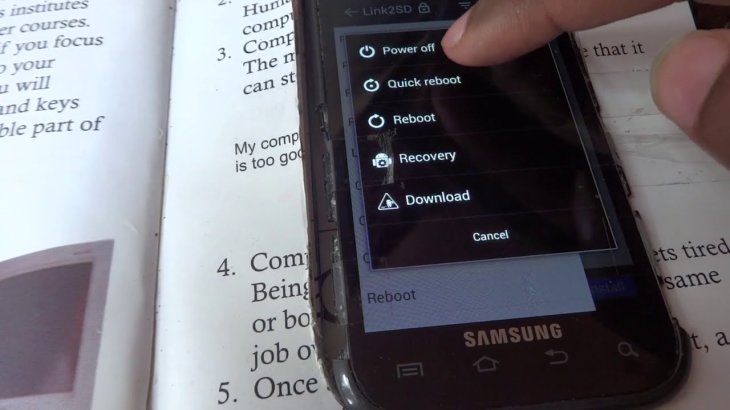
When you are sure that your device is under attack, hold the power button to shut it completely off. This will not prevent the malware from doing harm to your device, but at least, it can stop it from spreading to other networks.
This act will but you some time to think of what may cause the trouble and what you can do with it. Think hard to find the app that carries the malware. Does it download anything without your permission?
Now find a computer and see what the symptoms mean, you can also search for the apps you have installed recently to see if anyone has had problems with them. It is best to pinpoint just one app to be the culprit, but if you cannot be sure which one is at fault, having a list of possible malware carriers is good too. If you cannot find the cause, you cannot remove it.
If you have looked everywhere and the research is not fruitful, the only way now is to skip to step 5. There are anti-malware apps that can address the issue and even eradicate it for you; however, in order to do this, you must connect the phone to the Internet again, which can cause some more troubles.
Step 2: Turn On The Emergency Mode
When the phone is turned on, the first thing you need to do is to switch to safe mode. The damage cannot be undone, but this will make sure that the malware cannot reach other parts of the device.
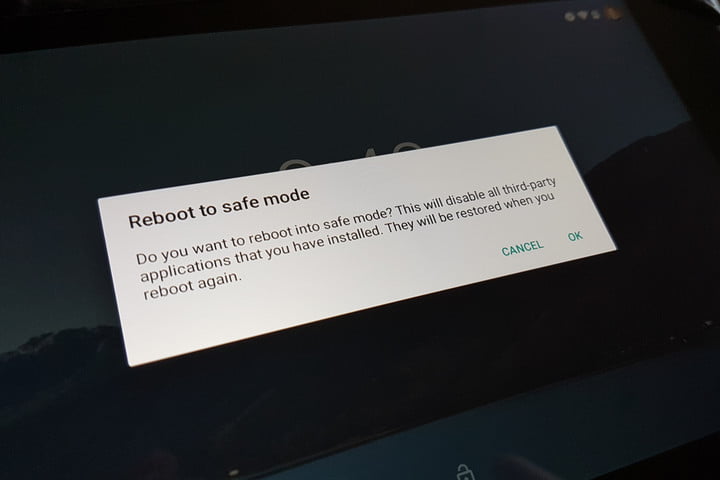
Nowadays, safe mode on Android devices can be activated by holding the power button for a few seconds and then do the same thing when you see the Power off option. Now you should see a list of options to choose from, including the one for safe mode. Tap on it and wait for the phone to do the rest.
In case you cannot locate this mode, the airplane setting can be a good substitute. It will limit your device’s access to other networks. It is usually on top of the phone.
Even after installing a security app and you cannot find the cause of the problem, it is time to ask for the assistance of a professional. As malware is getting more sophisticated, if the situation is out of your hand, someone with expertise might increase the chance of saving your phone and data.
Step 3: Access Settings And Locate The App
The Setting section usually looks like a gear on most devices. However, the appearance might change depending on the theme and the arrangement you choose. If you cannot find it, use Search.
In Setting, locate the part that reads Apps and accesses it. You will find a list of all the apps you have on the device. If you cannot see the full list, use App Manager. When you see it, find the app that causes trouble.
When you pick the app, you should see options like Force Close, Force Stop, and Uninstall. There is no way you can uninstall core apps, but they are rarely the carrier of malware.
Step 4: Remove The App And Anything Else You Think Suspicious
The fastest way is to press uninstall, and the app will be removed. If you have other systems in mind that you think might be the cause of the trouble, remove them too. If you have never seen the list before, you might be surprised at what you have on the phone all that time.
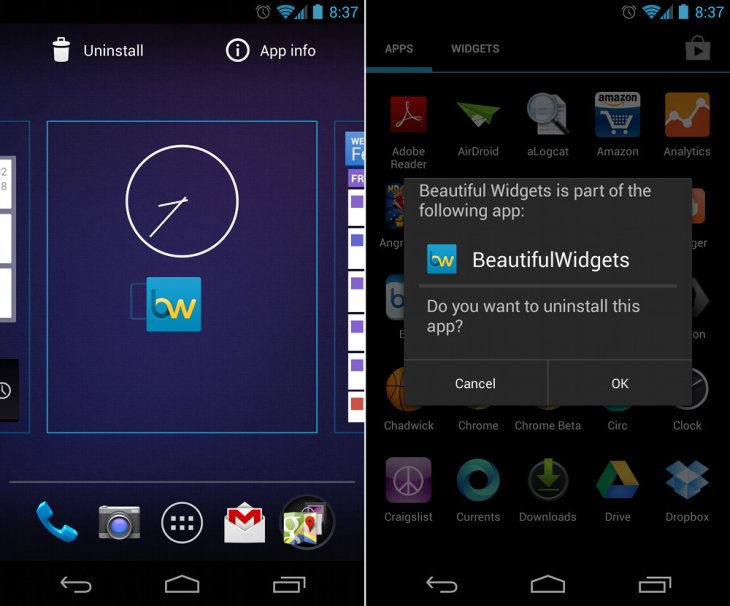
Some malware has become so smart that it accesses your administrator setting and grant itself protection from any uninstall attempt. So, in this case, you will not see the option to remove it; instead, you will see Disable.
If this happens to you, do the following. Going back to the Setting menu and find the Lock Screen and Security option (it may go under a different name on your device). Now look for the Phone/Device Administrator. On some smartphones, you may need to go through the “Other security settings” first. In there, you can undo what the malware has done, and now you can remove the app.
Step 5: Install Malware Protection
Your device contains vital information, and it also costs you a lot, so downloading protecting apps is advisable. There are lots of these systems you can use to set up another layer of defense. They can scan for suspicious apps, remove them and other junk files.
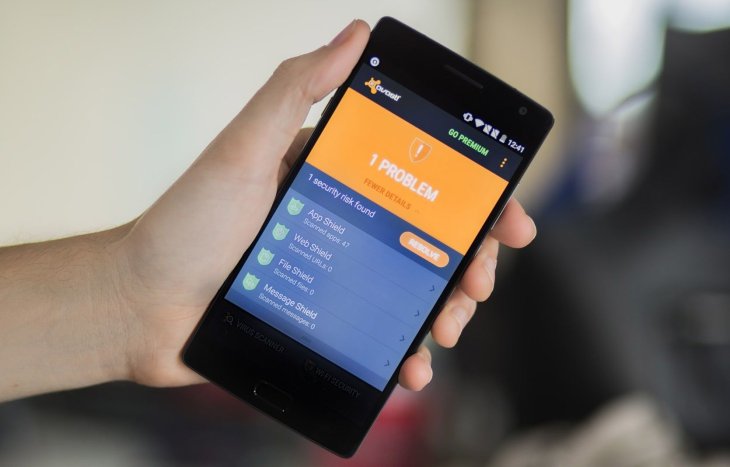
When you have uninstalled the troubling app, protect your smartphone by downloading protecting systems. Some of the most well-known is Avast Antivirus, AVG Antivirus, and 360 Security. They can be found on the Google Play Store. Look around the web for recommendations if these apps cannot satisfy your needs.
Another measure you can take to prevent malware from entering your device is to keep the phone up-to-date. You may not think it is important, but this step is crucial in keeping your device malware-free.
Featured Stories

Features - Jul 01, 2025
What Are The Fastest Passenger Vehicles Ever Created?

Features - Jun 25, 2025
Japan Hydrogen Breakthrough: Scientists Crack the Clean Energy Code with...

ICT News - Jun 25, 2025
AI Intimidation Tactics: CEOs Turn Flawed Technology Into Employee Fear Machine

Review - Jun 25, 2025
Windows 11 Problems: Is Microsoft's "Best" OS Actually Getting Worse?

Features - Jun 22, 2025
Telegram Founder Pavel Durov Plans to Split $14 Billion Fortune Among 106 Children

ICT News - Jun 22, 2025
Neuralink Telepathy Chip Enables Quadriplegic Rob Greiner to Control Games with...

Features - Jun 21, 2025
This Over $100 Bottle Has Nothing But Fresh Air Inside

Features - Jun 18, 2025
Best Mobile VPN Apps for Gaming 2025: Complete Guide

Features - Jun 18, 2025
A Math Formula Tells Us How Long Everything Will Live

Features - Jun 16, 2025
Comments
Sort by Newest | Popular