Windows 10 Tricks: 8 Ways To Take Screenshots Easily
Vaibhav Kapadia - Sep 13, 2019
Windows 10 users can easily capture all or just a part of the screen with some simple tricks as well as updated tools like Snip & Sketch.
- Windows 11 is Now the Most Popular Desktop OS in the World
- What Is Runtime Broker And What Does It Do? Simple Explanation
- Don't Input This Link In Your Browser Or Your PC Will Crash Immediately
Last October, Windows 10 released a new method to capture the screen, which is Snip & Sketch, replacing the old Snipping Tool. Microsoft said that it was phased out, but still, it is kicking around.
Let’s find out how the new tool works along with some other shortcuts in Windows 10 that take screenshots.
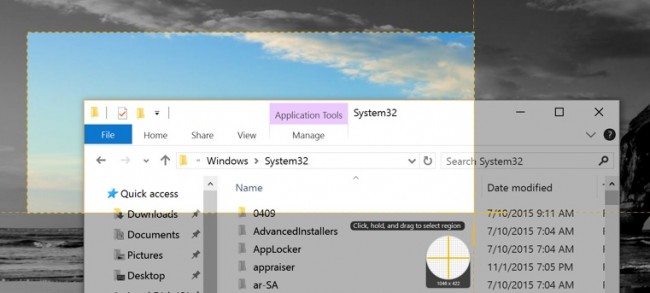
Snip & Sketch
This tool is more accessible and makes sharing screenshots easier, but lack a key feature in comparison to Snipping Tool. First, on the upper left in the window of the tool, choose “New” to start capturing your screen.
After the window disappears, at the top you would see a small menu from which you select what kind of screenshot you prefer, including full-screen, free-form, and rectangular. However, while in Snipping Tool can capture one window, it is impossible in Snip & Sketch. To delay a snip in about 10 seconds, you can choose the button looks like a down-arrow beside the “New” button in this window.
After the screenshot is done, you can find it in the tool. Here, it can be annotated by pen, pencil, and several tools found at the window’s top. There is a copy of your screenshot in the clipboard, including every annotation you have made.
Snipping Tool
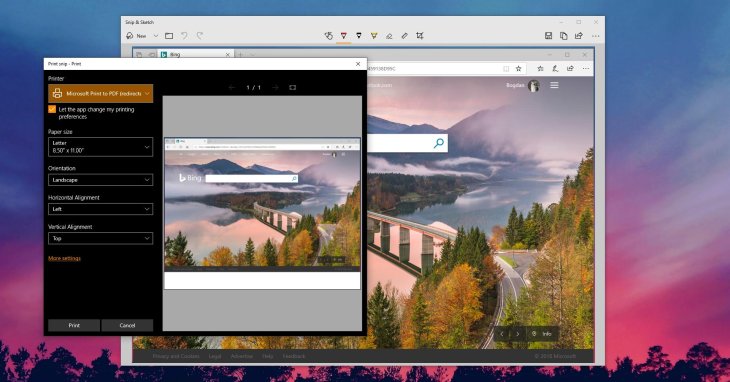
This tool first appeared in the Vista version. To start taking a screenshot, choose “New.” You can either take full-screen, window, and free-form snips or a default snip, which is a rectangular one.
Your screenshots are not automatically saved. Before exiting the Snipping Tool’s window, you need to save them manually. The copy of your capture does automatically save in the clipboard.
Windows key + Print Screen
When tapping Print Screen key + Window key, users will have a full-screen capture. It is automatically saved. You know that you have taken a screenshot successfully as your screen go dim briefly. You can find that picture in the Screenshots folder inside the Pictures file.
Print Screen
Press the PrtScn key, or Print Screen, to take an entire screenshot. It won’t be saved but rather a copy in the clipboard. To save it as a file, open one image editing tool like Microsoft Paint, then paste the capture in the editor.
If you want to set the Print Screen key to open Snip & Sketch, go to Settings, choose Ease of Access, then click on Keyboard. After that, under the Print Screen Shortcut, you toggle on Use the PrtScn button to open the screen snipping.
Alt + Print Screen
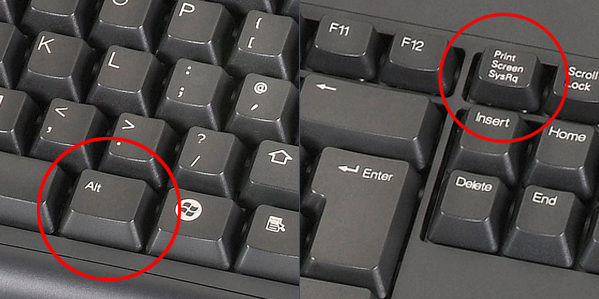
The shortcut Alt + PrtScn is used to take a screenshot of the active window quickly. Your captured one will be copied to the clipboard. So, to save it, you have to open the shot in an image editor.
Windows key + Shift-S
With Snip & Sketch, you can take a screenshot by using either the Screen snip button in the Action Center or Window key + Shift-S. The screen will be blurred, and a tiny menu of the tool above will allow you to choose the type of screenshot you prefer.
Windows Logo + Volume Down
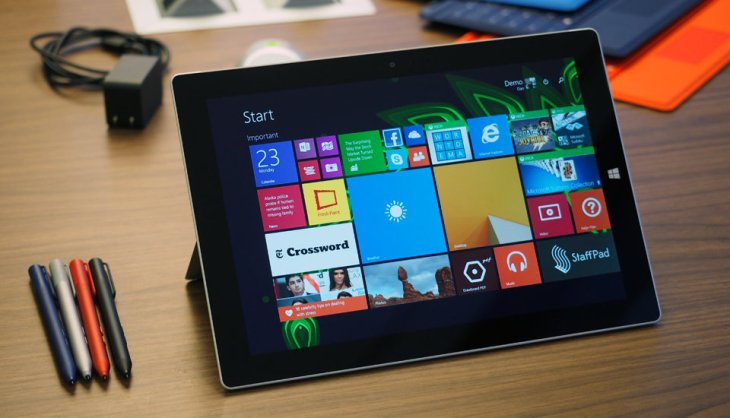
If you are using a Microsoft Surface device, similar to taking screenshots on other tablets and smartphones, users can capture all of your screens by physical buttons. Users can hold the Windows Logo button at the screen’s bottom as well as the volume-down button on the side at the same time. Your screenshot will be saved automatically in Screenshots folder inside Pictures as the screen go blur briefly.
Game bar
This bar can be used to take a screenshot even while you are playing the game. To call up the bar, hit the G key and Windows key. Then, in the Game bar, you can either choose the screenshot button or default keyboard shortcut PrtScn + Alt + Windows key to have your full screen captured. If you want to create your own keyboard shortcut for capturing a screenshot by the Game bar, choose Settings > Gaming > Game bar. To enable the bar from the settings page, don’t forget to use the Game bar to toggle on screenshots, record game clips, as well as broadcast.
Featured Stories

How To - Jul 25, 2025
Savant - Ascent REMIX Free Download (v1.2) - Electrifying Twin-Stick Shooter...

How To - Jul 25, 2025
Way of the Hunter Free Download (v1.23a) - The Ultimate Realistic Hunting...

How To - Jun 12, 2025
The Legend of Tianding Free Download (v1.01) - Become Taiwan's Legendary Outlaw

Features - Jun 11, 2025
Best VPN for PUBG Mobile 2025: Lower Ping & Regional Access Guide

How To - Jun 08, 2025
Telepath Tactics Liberated Free Download (v1.0.57) – The Ultimate Tactical RPG...

How To - Jun 07, 2025
The Mystery of Woolley Mountain Free Download – Whimsical Adventure Game

How To - Jun 07, 2025
We Need to Go Deeper – Complete Edition Free Download (v1.6.5)

How To - Jun 06, 2025
Pharaoh: A New Era Free Download – Build an Ancient Egyptian Empire

How To - Jun 04, 2025
Stardew Valley Free Download (v1.5.6) - Build Your Dream Farm

How To - Jun 04, 2025
Comments
Sort by Newest | Popular